A collection of icons for designers and developers, organized by category and ready to drop into any project.
How to Create a Custom Icon Library from Scratch
A custom icon library gives a digital product a consistent visual language. Instead of collecting unrelated symbols from different sources, you can define a shared style, organise files clearly, and build a reusable system for websites, apps, presentations, dashboards, and marketing materials.
The process begins with a practical plan rather than drawing dozens of icons at random. You need to understand the product, identify its most common actions, choose a visual direction, and prepare files that remain easy to edit. A carefully built library can save hours whenever a new feature, landing page, or campaign is developed.
Define The Library’s Purpose
Start by identifying where the icons will appear and who will use them. A banking app may need symbols for transfers, cards, alerts, and account security, while a travel platform might require icons for flights, luggage, maps, accommodation, and local transport. Write down the key tasks your audience performs and use them to establish the first group of icons.
Consider the Australian market when making these decisions. A service aimed at customers in Sydney, Melbourne, or regional Queensland may need clear icons for delivery areas, appointment bookings, payments, and support. If your library will serve Australian businesses, allow for familiar payment methods, local terminology, and responsive layouts that work well on mobile connections.
Choose A Consistent Visual Style
Decide whether the collection will use outline icons, filled shapes, duotone artwork, or a combination of simple geometric forms. Set rules for stroke thickness, corner radius, perspective, spacing, and visual weight. These decisions prevent one icon from appearing heavy or awkward beside another.
Create a small style test before expanding the collection. Draw five or six symbols with the same grid and compare them at 16, 24, and 32 pixels. An icon that looks attractive at a large size may lose its meaning when reduced. Test it in light and dark interfaces, and check how it appears beside Australian English labels such as “favourite”, “organise”, or “postcode”.
Build A Practical Grid
A grid makes proportions easier to control and helps every symbol occupy a similar amount of space. A 24-by-24-pixel grid is a useful starting point for user interface work, although larger master artwork can provide more flexibility. Set a safe area inside the outer boundary so that visual details do not touch the edges.
Use shared alignment points for repeated elements. Arrows, notification dots, person silhouettes, and document corners should follow the same positioning logic throughout the set. Optical adjustments are still important: a circular shape may need to extend slightly beyond a square shape to appear equally large.
Design The Core Symbols
Begin with essential actions and objects rather than obscure concepts. Search, close, edit, download, settings, calendar, user, home, menu, and information icons often form the foundation of a digital product. Once these are working, add category-specific symbols that reflect the product’s content and workflows.
Avoid drawing too much detail into a small icon. A recognisable silhouette usually communicates faster than a technically accurate illustration. For complex ideas, combine familiar forms carefully, such as a card with a lock for secure payment or a suitcase with a location pin for travel. Every added detail should improve recognition.
Prepare Editable Source Files
Keep your master artwork in an editable PSD file with clean layers, descriptive names, and consistent groups. Separate background shapes, strokes, highlights, and optional details so another designer can change colours or dimensions without rebuilding the icon. Use vector shape layers where possible to preserve quality across different screen sizes.
Export transparent PNG files for quick use in mockups, presentations, and content management systems. Check that the files have the correct pixel dimensions, colour mode, and transparent edges. PSD Icons follows a similar practical approach by offering icon collections in PSD and transparent PNG formats, making it easier to adapt a set for different digital projects.
Organise Naming And Metadata
A good file structure is part of the library’s design system. Use predictable names such as user-add, calendar-event, or payment-secure rather than vague labels like icon-final-2. Group files by function, product area, or visual style, and keep a short record of available sizes and colour variations.
Include useful metadata when sharing the library with a team. A simple catalogue can state the icon name, meaning, keywords, file format, and recommended use. This helps developers locate the right asset quickly and reduces accidental duplication. It is particularly valuable for distributed teams working across AEST and other time zones.
Test Accessibility And Real Use
Place the icons inside realistic screens instead of judging them in isolation. Test navigation bars, buttons, form fields, cards, and empty states on desktop and mobile layouts. Check whether the meaning remains clear when the icon is surrounded by content or paired with a short label.
Icons should support text rather than replace essential instructions. Maintain sufficient contrast, provide accessible labels for interactive controls, and avoid relying on colour alone to communicate status. Test the library with common Australian devices and browsing habits, including compact mobile screens used while commuting in Melbourne or travelling between suburbs in Brisbane.
Maintain And Expand The Collection
A custom icon library should evolve through controlled additions. When a new symbol is needed, compare it with existing shapes before creating a new style. Record the reason for the addition and update the catalogue so that future designers can find it. Remove duplicates and retire symbols that no longer serve a clear purpose.
Keep a small feedback loop with designers, developers, and content teams. Creative routines can also benefit from simple documentation habits; ideas for new symbols may emerge while sketching workflows or keeping visual notes, much like creative journal habits help organise developing thoughts. Review the set after major product releases or before a busy period such as an Australian end-of-financial-year campaign.
Start with a focused collection of essential symbols, build each one on a shared grid, and save both editable PSD masters and transparent PNG exports. Browse the free and premium sets at PSD Icons for reference, reusable building blocks, or a faster foundation for your next interface. Subscribe to release updates when you want new styles and categories delivered as the catalogue grows.
Ultimate Flat Social Icon Set
A premium pack of 70 icons delivered in PSD and PNG, across 4 sizes and 2 different styles, with an HTML/CSS3 version included.
It was built to complement the free library for projects needing a consistent, flat social icon set.
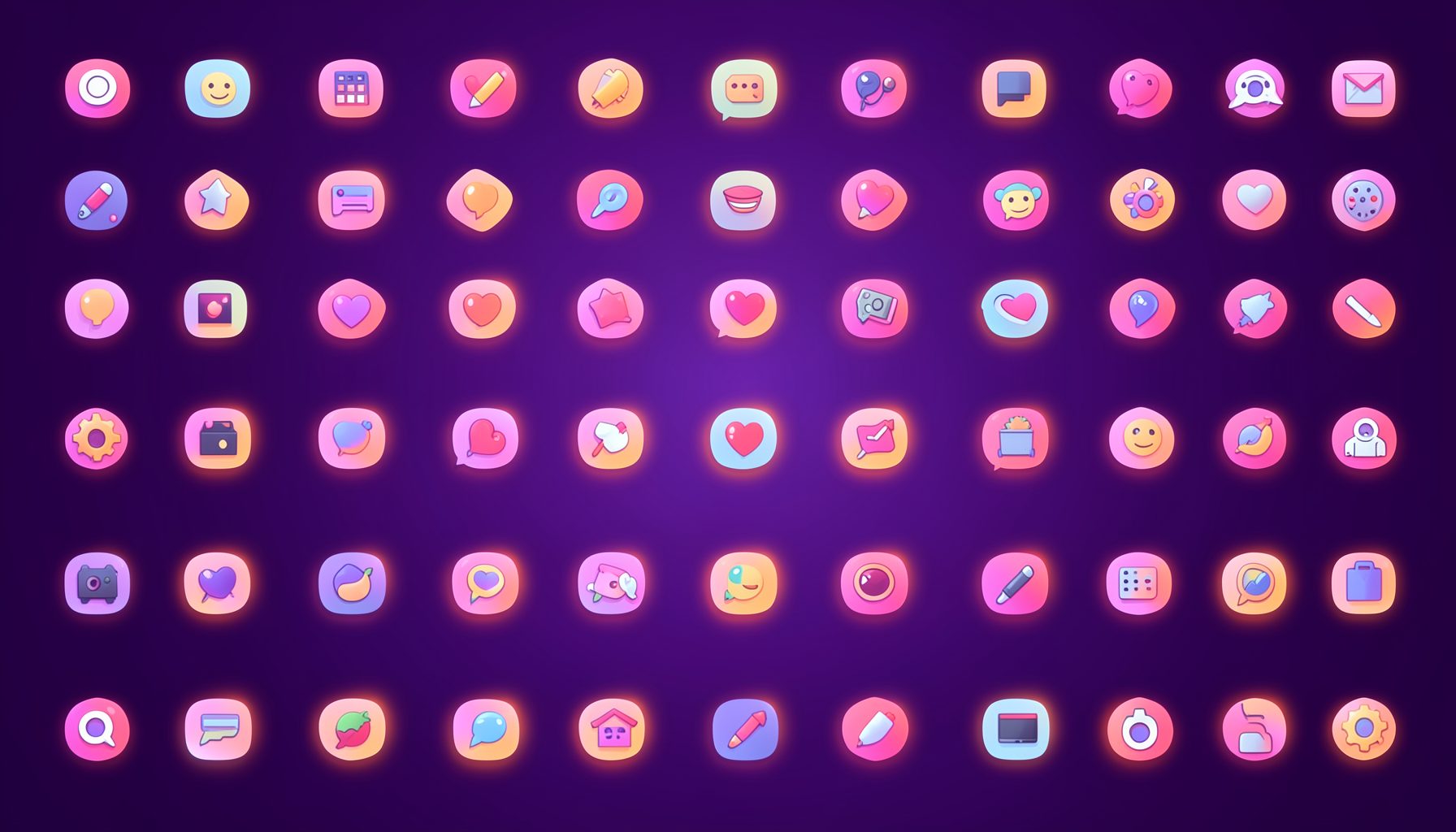
Browse by category
Icons are grouped into 19 categories, from everyday app and business icons to travel, music and user-interface glyphs.
Categories
Apps, Business, Communication, Design, E-commerce, Entertainment, Finance, Holidays & Events, Internet, Media, Miscellaneous, Music, News, Photography, Social, Technology, Travel, User Interfaces, Video.
License & Subscribe
Licensing terms cover use of both free and premium icons in personal and commercial work. Subscribers received email updates on new icon posts, with an RSS feed also available.

Get in touch
Questions, information or icon suggestions could be sent to contact.psdicons@psdicons.net, with replies typically arriving in 1–2 days.
𝕏