A collection of icons for designers and developers, organized by category and ready to drop into any project.
Build a Reusable Smart Object Icon System
A clean icon set depends on consistent shapes, spacing and visual weight. Smart Objects let you keep each icon component editable while protecting it from accidental changes. They also make it easier to create colour variants, interface states and replacement artwork without rebuilding every asset.
This workflow suits designers preparing layered PSD files and transparent PNG exports for websites, applications, mockups and presentations. Instead of flattening each icon into a single layer, you can build a modular source file that remains practical to customise and easier to maintain.
Prepare a Modular Source File
Keep the master icon document separate from mockups, slide decks and other client files. Store vector sources, individual components and the master PSD in a predictable folder structure. This prevents a presentation file from becoming the only surviving version of an editable asset.
Create each icon from reusable parts, such as a base shape, foreground detail and optional badge. Use shared guides and a defined canvas size, then keep stroke widths and corner treatments consistent. If you place an SVG, AI, PDF or layered PSD, use Photoshop’s Place command and load it as a Smart Object.
Australian design teams are often distributed across Sydney, Melbourne, Brisbane and Perth. A shared master file with clear naming can let one designer update an asset while colleagues in another city continue working without creating competing versions.
Create and Connect Smart Objects
Select a placed layer and choose Layer > Smart Objects > Convert to Smart Object when the artwork already exists on the canvas. For source artwork, use File > Place and select Place as a Smart Object. Both methods create a dedicated container, while the Place workflow keeps the original file available for deeper editing.
Embedded Smart Objects store their content inside the parent document and travel with the PSD. Linked Smart Objects point to an external file, which can suit a controlled studio master. Linked files require careful delivery, however, so include the complete source folder and preserve relative paths or embed the objects before publishing.
Double-click a Smart Object to open its source document. Make the change, save it and close the source window; Photoshop updates the parent automatically. To swap artwork, choose Replace Contents and select the new file. The layer can retain its mask, opacity and layer style while gaining an updated icon.
Assemble Icons From Editable Layers
Give each reusable component its own clearly named Smart Object. A suitcase icon might contain a body, handle and luggage tag, while a finance icon might separate the chart from its currency symbol. This makes it possible to recolour or replace one component without redrawing the entire symbol.
Apply effects to the Smart Object layer rather than painting them into the artwork. A subtle shadow, outline or inner highlight can then remain attached when the underlying design changes. Avoid excessive effects, since small interface icons often lose clarity when displayed at 16 or 20 pixels.
Travel collections need attention to recognisable local details. Test Melbourne trams, Sydney ferries, interstate rail routes and accessible boarding symbols instead of relying on generic vehicles. Sharper contextual examples help an Australian audience identify the intended service immediately.
Manage States, Sizes and Naming
Create separate layers for default, hover, active, disabled and selected states. Keep each state as its own Smart Object so Photoshop exports and mockups can show the appropriate appearance through layer visibility. This approach is more reliable than trying to squeeze several interaction states into one heavily edited file.
Use predictable names such as icon/travel/ferry/body and icon/travel/ferry/state-hover. Australian project conversations can be casual—a “quick tweak, can you have a go?” may cover a substantial visual change—so turn those requests into precise layer and size updates. Use Australian spellings in interface previews, including “favourites”, “organisation” and “colour”.
Set up artboards for the required export sizes, such as 16, 20, 24 and 32 pixels. Inspect the artwork at actual size rather than relying only on a zoomed canvas. Export transparent PNG files for easy placement, while retaining the layered PSD as the editable master.
Package, Publish and Reuse the System
Turn the master into a delivery package containing layered PSD files, transparent PNG exports and a preview sheet. Show how components are named and explain whether they are embedded or linked. Clear documentation gives buyers confidence that the set can support more than a static mockup.
Pre-Release Checks for Icon Packs
Before export
- Check every Smart Object for missing or substituted content.
- Inspect pixel alignment at the smallest intended size.
- Confirm that PNG files have transparent backgrounds.
Before publication
- Include a layered PSD and a visual catalogue of every icon.
- State the file formats, licence and modification terms.
- Test the download in a clean Photoshop document.
For Australian freelancers and small studios, the practical comparison is the final cost in AUD and whether GST is included. A clear receipt also helps buyers record the purchase as a project expense. In the PSD Icons catalogue, premium packs can provide expanded collections for business, finance, travel, social media and interface work.
Browse the free collections, choose a premium pack when your project needs reusable components and subscribe for new releases. Download an icon set today and turn its editable parts into a consistent system your team can use across every design.
Ultimate Flat Social Icon Set
A premium pack of 70 icons delivered in PSD and PNG, across 4 sizes and 2 different styles, with an HTML/CSS3 version included.
It was built to complement the free library for projects needing a consistent, flat social icon set.
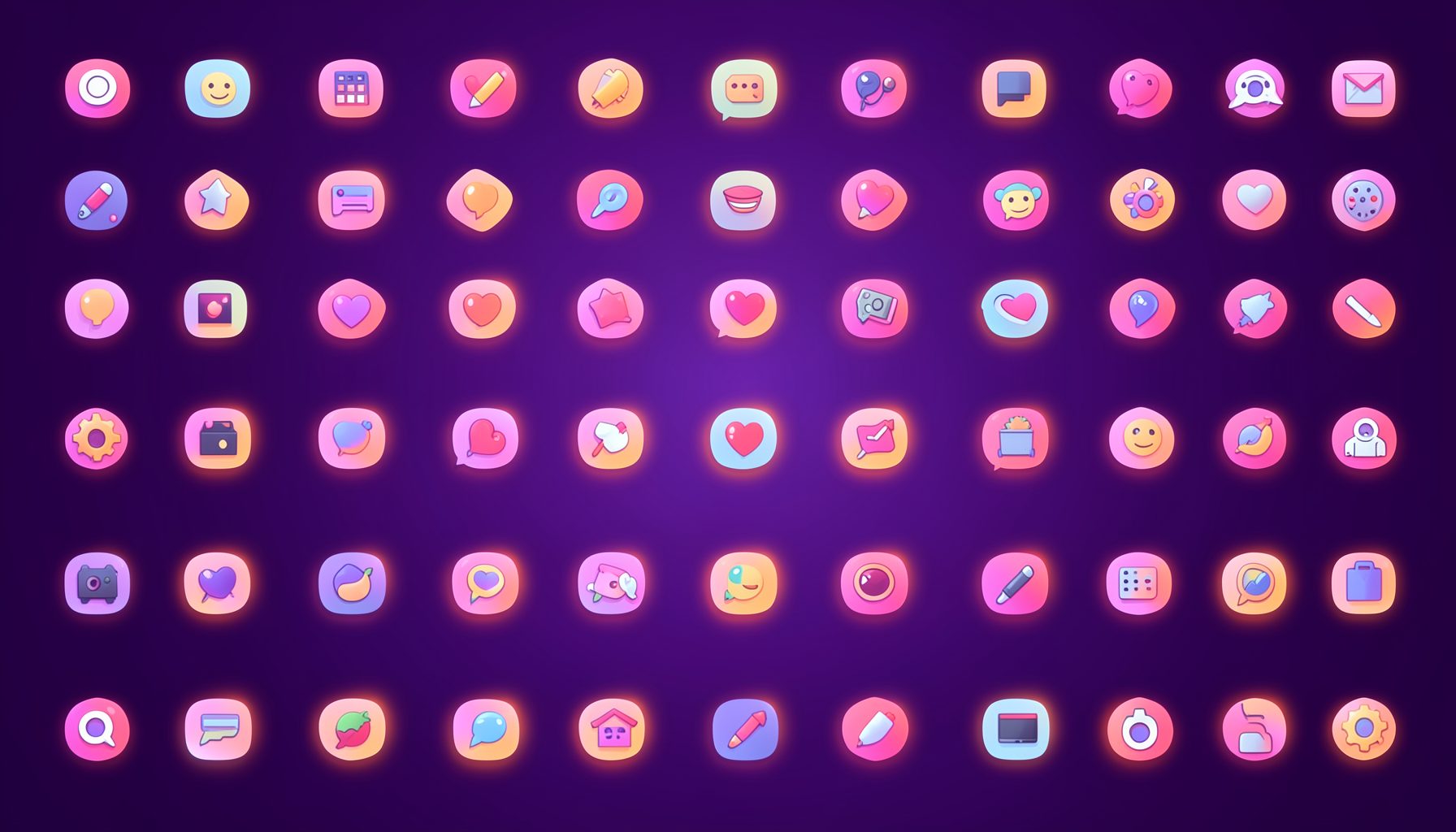
Browse by category
Icons are grouped into 19 categories, from everyday app and business icons to travel, music and user-interface glyphs.
Categories
Apps, Business, Communication, Design, E-commerce, Entertainment, Finance, Holidays & Events, Internet, Media, Miscellaneous, Music, News, Photography, Social, Technology, Travel, User Interfaces, Video.
License & Subscribe
Licensing terms cover use of both free and premium icons in personal and commercial work. Subscribers received email updates on new icon posts, with an RSS feed also available.

Get in touch
Questions, information or icon suggestions could be sent to contact.psdicons@psdicons.net, with replies typically arriving in 1–2 days.
𝕏