A collection of icons for designers and developers, organized by category and ready to drop into any project.
Icon layering techniques for depth in Photoshop
Depth in an icon is created by organising shapes, shadows and highlights so the symbol feels dimensional rather than flat. In Photoshop, that effect begins with disciplined layer construction, not with a heavy bevel or oversized glow. The same principles suit product dashboards, travel apps, pitch decks and mock-ups built with icons from PSD Icons.
A useful workflow keeps editable artwork separate from effects, then tests how those effects survive at 16, 24, 32 and 48 pixels. Smart objects make this easier, while vector shape layers keep edges clean for transparent PNG exports. The result is a layered asset that can be adjusted for light, colour and interface context without rebuilding every symbol.
For Australian teams, depth must also work in busy commercial settings: a Sydney fintech, a Melbourne agency presentation or a booking flow for the Great Ocean Road. Clear silhouettes, sensible contrast and restrained shadows help icons remain recognisable on mobile screens, even when the surrounding palette echoes bright coastal scenery.
Build a layered icon foundation
Start by duplicating the base shape and turning it into a Smart Object before adding visual treatments. Separate the artwork into named groups such as Base, Facet, Highlight, Shadow and Edge. This structure makes it simple to change a highlight across an entire set or remove effects when a symbol needs a flatter variant for a small interface.
Build from broad geometry inward: primary silhouette, secondary plane, highlight, shadow, then small details. Align objects to the same centre and optical grid; mathematically centred circles can still look off because icons are often asymmetrical. Keep the original vector paths live where possible, and use masks rather than painting corrections that hide the underlying shape.
Create depth with light and shadow
A consistent light source gives a set coherence. Decide whether the light falls from the upper left, as most interface conventions suggest, and apply it to every symbol. Layer styles such as Drop Shadow, Inner Shadow and Bevel can create convincing depth, but their distance, spread and opacity should suggest a small elevation rather than a heavy physical object.
Gradients can explain curved surfaces, while a narrow highlight along an edge adds polish. Check the effect on a bright background as well as a dark one; an icon that looks crisp in a white PSD preview may lose its edge in a navy app bar. For coastal travel visuals, the hard light around Bondi can inspire colour, but the icon itself should retain stable, readable shading.
Apply depth across interface styles
Depth should support hierarchy without making every control appear clickable. Use contrast, scale and shadow to distinguish a selected state from a neutral one, while secondary actions receive quieter treatment. This is especially important in dense finance dashboards used by Australian customers on older devices as well as newer phones.
Tone matters too. An icon set for a social app can use softer shadows and friendly rounded geometry, while a travel icon may use crisp directional cues. If an Australian brand speaks in a relaxed, plain-spoken voice—perhaps calling the afternoon an “arvo” in its campaign—the artwork should still be precise. Friendly language and disciplined icons can coexist without adding cartoonish effects.
Use one depth scale across related screens and document it with a few presets: subtle, raised and selected. Applying the same values stops a collection from looking like separate products stitched together. Preview icons beside real interface copy, buttons and imagery, because optical balance often changes when a symbol sits next to an “Add”, “Search” or “Book” label.
Refine and export the layered artwork
Review the artwork at actual display sizes and from a distance. A shadow that looks convincing at 512 pixels can become a grey halo at 24 pixels, so soften or remove it when necessary. Check edges for halos, use Smart Object scaling, and export transparent PNGs from flattened copies while retaining the layered PSD as the editable master.
Before a pack enters a client project, check its usage terms as well as its file structure. This overview of icon licensing types explains why personal, commercial and redistribution rights can differ. Keep the licence with project records, and retain receipts so Australian agencies can assess GST treatment under the relevant business rules.
Practical layering recommendations
Before applying effects, decide which part of the symbol needs emphasis. A coin needs a rim and glint; a map pin needs a directional shadow; a chat bubble needs separation, not a miniature bevel. Simpler geometry often gives the strongest result because every added plane must remain visible at small sizes.
Depth also depends on balance rather than sheer decoration. The same visual logic appears in fashion, where the guide to Golden Goose pairing tips shows how contrasting textures can work without overwhelming the main item. Treat highlights and shadows as supporting textures: they should guide the eye, not compete with the icon’s silhouette.
- Build each symbol from vector shape layers and keep the source artwork editable.
- Convert repeated base artwork to Smart Objects before applying shared effects.
- Maintain one light direction across the complete collection.
- Group layers by function and use clear, consistent names.
- Test each icon at 16, 24, 32 and 48 pixels.
- Export transparent PNG files while preserving the layered PSD master.
Browse the free collections at PSD Icons and test the technique on a symbol from your next website, app or presentation. Premium packs can extend the same visual language across business, technology, finance, travel, social media and interface categories without forcing a mixed style.
Choose a palette, set one light direction and build your first icon group today. Sign up for email updates to discover new collections, then export both a layered PSD master and a clean transparent PNG for delivery.
Ultimate Flat Social Icon Set
A premium pack of 70 icons delivered in PSD and PNG, across 4 sizes and 2 different styles, with an HTML/CSS3 version included.
It was built to complement the free library for projects needing a consistent, flat social icon set.
Browse by category
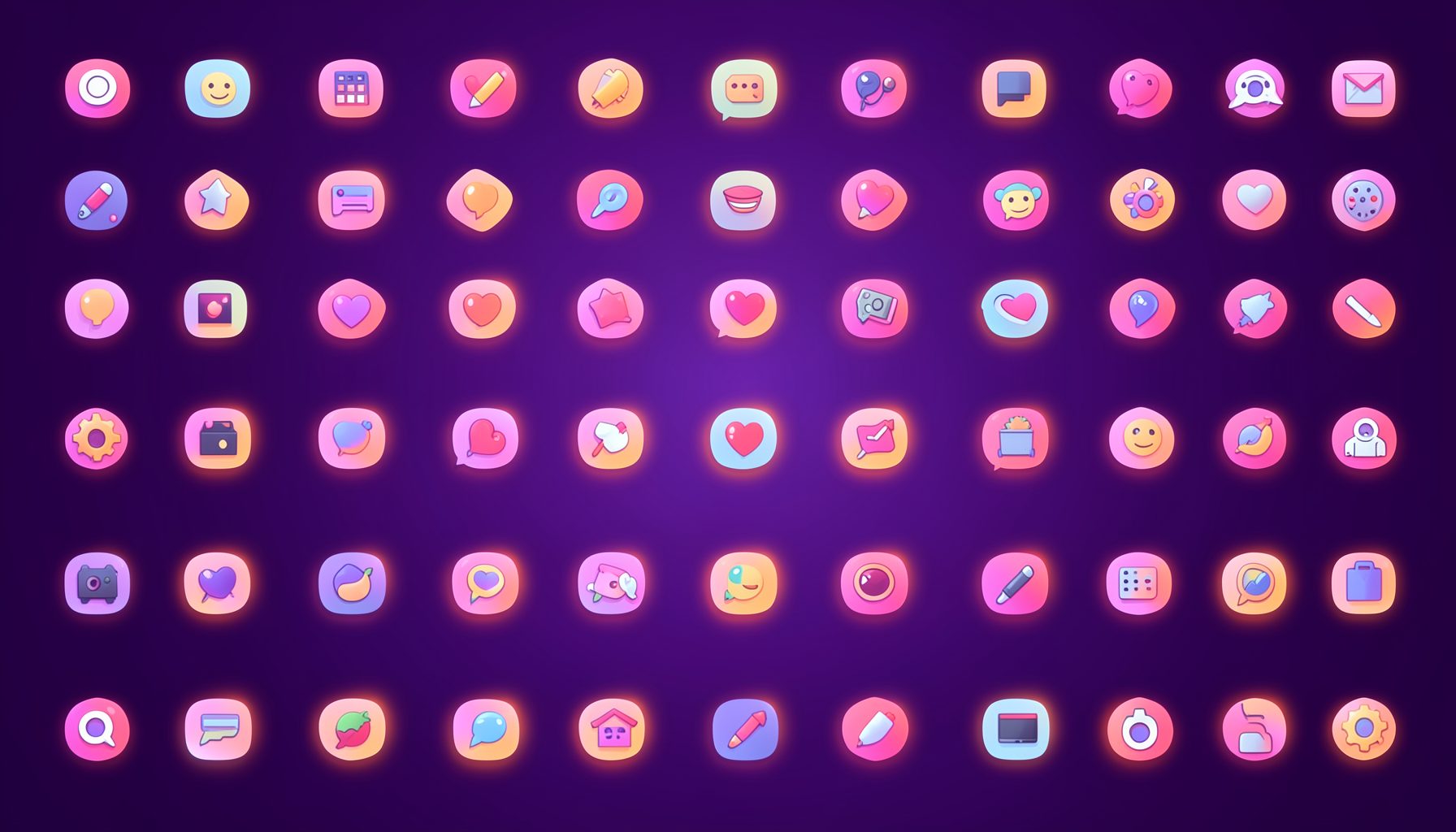
Icons are grouped into 19 categories, from everyday app and business icons to travel, music and user-interface glyphs.
Categories
Apps, Business, Communication, Design, E-commerce, Entertainment, Finance, Holidays & Events, Internet, Media, Miscellaneous, Music, News, Photography, Social, Technology, Travel, User Interfaces, Video.
License & Subscribe
Licensing terms cover use of both free and premium icons in personal and commercial work. Subscribers received email updates on new icon posts, with an RSS feed also available.

Get in touch
Questions, information or icon suggestions could be sent to contact.psdicons@psdicons.net, with replies typically arriving in 1–2 days.
𝕏